Plaidio Quickstart
Turn a playlist or music source into a live, always-on radio station that any device can tune into from a single URL — curated and managed entirely from the CMS, with no queue logic to build on the client.
Plaidio is the stream-based implementation option for Unified listening. Where ShadowQ hands your application an API-controlled queue to synchronise, Plaidio produces a continuous live HLS stream — the same technology behind internet radio — that any device or application with an HLS audio (or video) player can play from one URL.
Because listeners consume a stream rather than a queue, the client stays simple: point an <audio>/<video> element or media player at the station's .m3u8 URL and press play. Ordering, crossfades, timed inserts and rights handling are all done server-side and managed from the CMS.
For how Plaidio compares with ShadowQ and when to choose each, see the Unified listening overview.
What is Plaidio?
Plaidio generates, curates and manages live HLS radio stations (also known as internet radio). A station is a continuously running, linear stream assembled from a playlist you control. The output is standard HLS — an .m3u8 manifest plus segmented audio — delivered over a CDN, so it plays in:
- browsers (natively on Safari/iOS, or via a small HLS library elsewhere),
- native mobile apps (iOS
AVPlayer, AndroidExoPlayer), - smart speakers, TVs, in-car and embedded players,
- anything that already knows how to play internet radio or HLS video.
Key characteristics:
- Linear and lean-back. Every listener hears roughly the same point in the stream — ideal for branded radio, background music, and always-on channels where exact on-beat sync isn't required.
- One URL, unlimited listeners. A single HLS URL scales to a mass audience through the CDN, with no per-listener queue state to manage.
- Server-side curation. Track order, crossfades, timed inserts and rights handling happen in the stream, not in the client.
- Timed call-outs and dynamic inserts. Schedule announcements, promos, or recurring audio (for example, timed prayer call-outs) to play at exact times across the whole audience at once.
Note: Plaidio or ShadowQ?
Choose Plaidio for a radio-style linear stream URL, mass listening, and simple client playback where listeners can be a few seconds apart. Choose ShadowQ when you need hundreds of unique experiences, exact on-beat alignment, or per-user interaction and queue control. Full comparison on the Unified listening overview.
Timed inserts and call-outs
Plaidio can weave scheduled audio into the live stream at exact times, across the entire audience at once. The music is ducked or cut around each insert server-side, so every listener hears it together with no client-side logic. Use it for:
- recurring call-outs — for example, timed prayer (adhan) call-outs inserted at the correct time each day, as with the Include Adhan option on the Details tab;
- announcements and station IDs — branded idents or messages on a schedule;
- promos and sponsor messages — timed drops delivered to the whole audience.
How it works and what you will build
At a high level, standing up a Plaidio station looks like this:
- Create and configure a station — give it a name, description, cover art, content tier, timed inserts and compliance options.
- Curate its playlist — add, order and manage the songs.
- Publish. Plaidio assembles a continuous HLS stream and pushes segments to the CDN.
- Consume the station's HLS URL from any player.
- Manage the station live — edit the playlist, refresh and monitor while it stays on air.
Steps 1–3 and 6 all happen in the CMS. Step 5 is the only part your application implements, and it is just standard HLS playback.
Watch our CMS video on how to create Plaidio stations.
Step-by-step guide
1
Create or edit a station in the CMS
Everything about a Plaidio station is managed from the Content Studio > Plaidio section of the CMS. Create or open a station and you'll see four tabs — Details, Songs, Image, and Publish — plus a station actions menu. A red dot next to the station name and a LIVE status badge mean the station is currently on air.
Details tab — overview and settings
The Details tab is the station's home. A summary strip shows the current status, the number of songs, and the total duration of the playlist, along with a Songs by Owner breakdown so you can see the content mix at a glance.
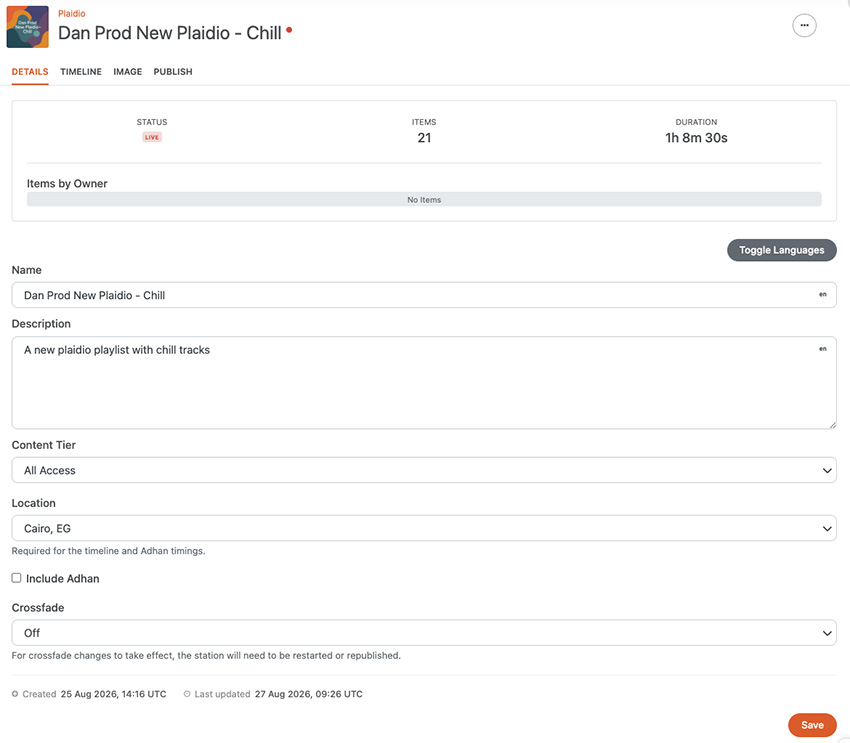
From here you set:
- Name and Description — shown to listeners and in station metadata. Fields are per-language (note the
enmarker); use Toggle Languages to localise. - Content Tier — the entitlement level a listener needs to tune in (for example, All Access).
- Include audio messages and other timed inserts — enable recurring, time-scheduled call-outs. In the example above the station mixes music with timed adhan (prayer) call-outs inserted at the correct times each day; the same mechanism drives announcements and promos.
Image tab — cover art
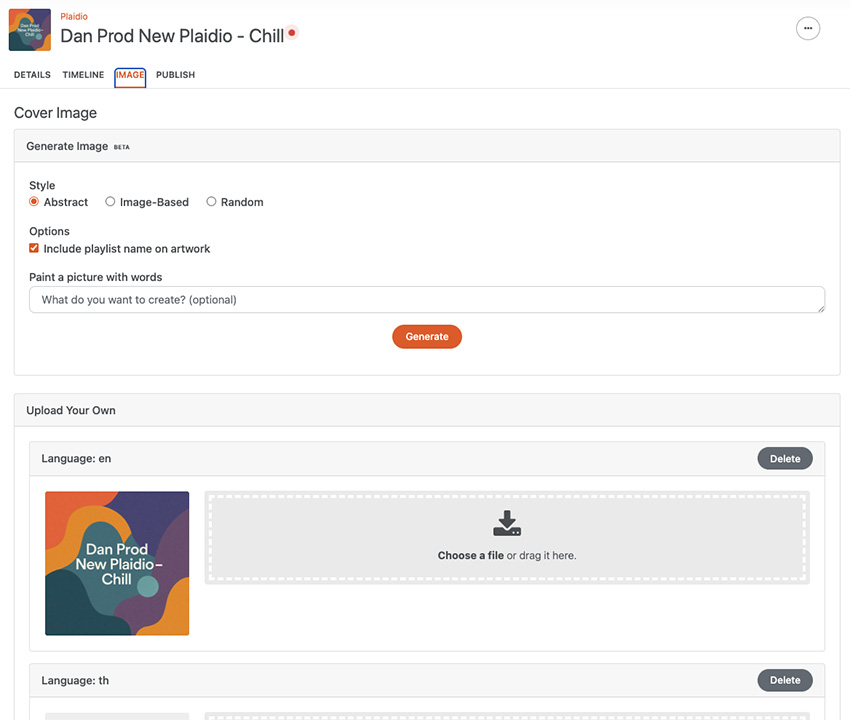
The Image tab sets the station's cover art, shown in players and listings. You can generate artwork (beta) — choose a style (Abstract, Image-Based, or Random), optionally include the station name on the art, and describe what you want in words — or upload your own image, per language.
2
Curate the playlist for your radio
Songs tab — curate the playlist
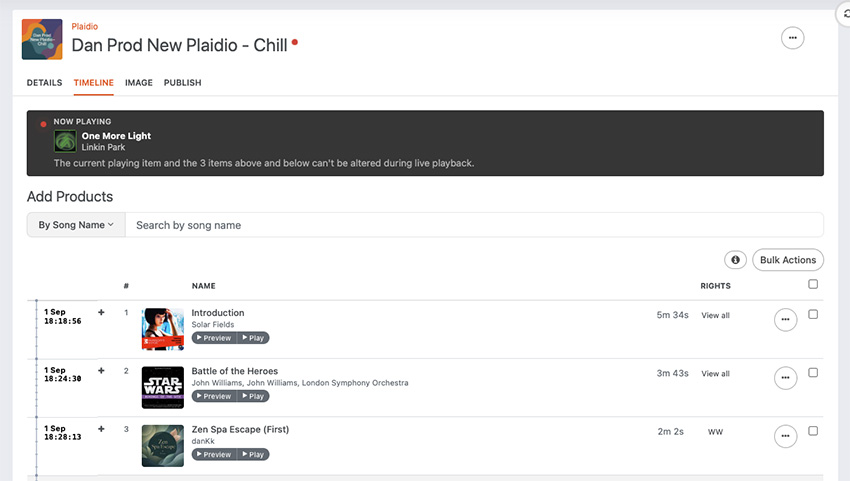
The Songs tab is where you build and order the station's playlist. Search the catalogue (By Song Name and other modes), then add tracks. Each row shows artwork, title and artist, BPM, and rights coverage (for example WW for worldwide, or View all for a territory breakdown). Use the reorder handle to set play order, the row menu for per-track actions, and Bulk Actions to manage many tracks at once.
Because Plaidio stations run continuously, edits are safe to make while a station is on air — with one guardrail:
Important: Live-edit protection.
While a station is live, the currently playing song and the three songs above and below it are locked and can't be altered. This protects the in-flight portion of the stream from changing under listeners. Edits elsewhere in the playlist take effect as the stream advances.
As the stream plays, the currently airing track is flagged NOW PLAYING in the list, so you always know where the station is up to.
3
Publish — go live and manage the stream
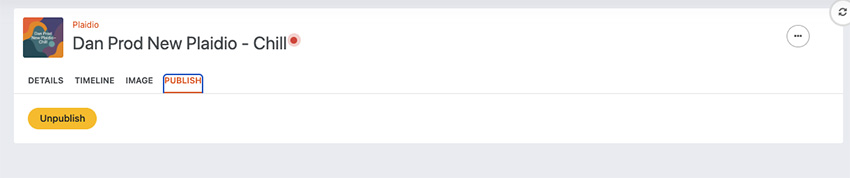
The Publish tab controls whether the station is on air. Publishing assembles the live HLS stream and starts pushing segments to the CDN; Unpublish takes it off air. The station actions menu provides the operational controls:
Check DMCA Compliance | Validates the playlist against DMCA / licensed-radio rules (artist and track spacing, consecutive-track limits) before you broadcast. |
Clear Cache | Flushes cached stream and CDN state so changes are picked up cleanly. |
Restart | Restarts the station's stream — useful after significant playlist or configuration changes. |
View Logs | Opens the station's runtime logs for monitoring and troubleshooting. |
Tip
Run Check DMCA Compliance before publishing any station intended as a licensed radio service. It flags sequencing that could breach DMCA rules — such as too many tracks from the same artist or album in a row — so you can fix it before you go on air.
4
Consume the stream
A published station exposes a standard HLS manifest URL (.m3u8). Point any HLS-capable player at it.
Safari and iOS play HLS natively — an <audio> element is enough:
<audio controls src="https://<your-cdn-domain>/<station-id>/playlist.m3u8"></audio>For browsers without native HLS (Chrome, Firefox, Edge), use a small HLS library such as hls.js and fall back to the native player where it exists:
<video id="radio" controls></video>
<script src="https://cdn.jsdelivr.net/npm/hls.js@latest"></script>
<script>
const url = 'https://<your-cdn-domain>/<station-id>/playlist.m3u8';
const el = document.getElementById('radio');
if (el.canPlayType('application/vnd.apple.mpegurl')) {
el.src = url; // Safari / iOS — native HLS
} else if (Hls.isSupported()) {
const hls = new Hls(); // Chrome / Firefox / Edge
hls.loadSource(url);
hls.attachMedia(el);
}
</script>Native mobile and embedded clients use their platform HLS player (iOS AVPlayer, Android ExoPlayer, or any media player that accepts an .m3u8 URL). Because it is ordinary HLS, the same URL also plays in VLC, ffplay, and most internet-radio directories.
Note: Your station's exact stream URL is provided by Plaidio when you publish. HLS is a segmented, buffered format, so listeners typically sit a few seconds behind the live edge and may be slightly offset from one another — expected for radio-style listening, and the reason to choose ShadowQ when exact alignment matters.
What you get
- A live HLS radio station with a single stream URL that scales to a mass audience.
- A CMS workspace to create, curate, illustrate and publish stations without writing playback code.
- Server-side curation — ordering, crossfades, content tiers and rights handling in the stream.
- Timed inserts for call-outs, announcements and promos.
- Operational controls — DMCA compliance checks, cache clearing, restart and logs — with live-edit protection so on-air changes stay safe.
Next steps
- Open the Plaidio section of the CMS and create your first station.
- Watch the CMS video about Plaidio.
- Revisit the Unified listening overview to confirm Plaidio is the right fit versus ShadowQ.
- Curate a playlist, run Check DMCA Compliance, then Publish and tune in with the HLS snippet above.


On this page
- Plaidio Quickstart